Your computer has a QWERTY keyboard and you need to write something in Arabic. You don't need to buy anything: there are four ways to do it, from the quickest to set up to the most efficient in the long run.
First, what makes Arabic different on screen. It runs right to left, and each letter changes shape depending on where it sits in the word (start, middle, end or on its own). You don't have to deal with this: you type the letter and the system picks the right form. Short vowels (the harakat: fatha, damma, kasra…) are optional in most texts, and you add them with Shift when you need them.
1. An online keyboard, to start typing right away
This is the simplest option if you only write Arabic now and then, or if you're on a computer you can't configure (at work, in a library).
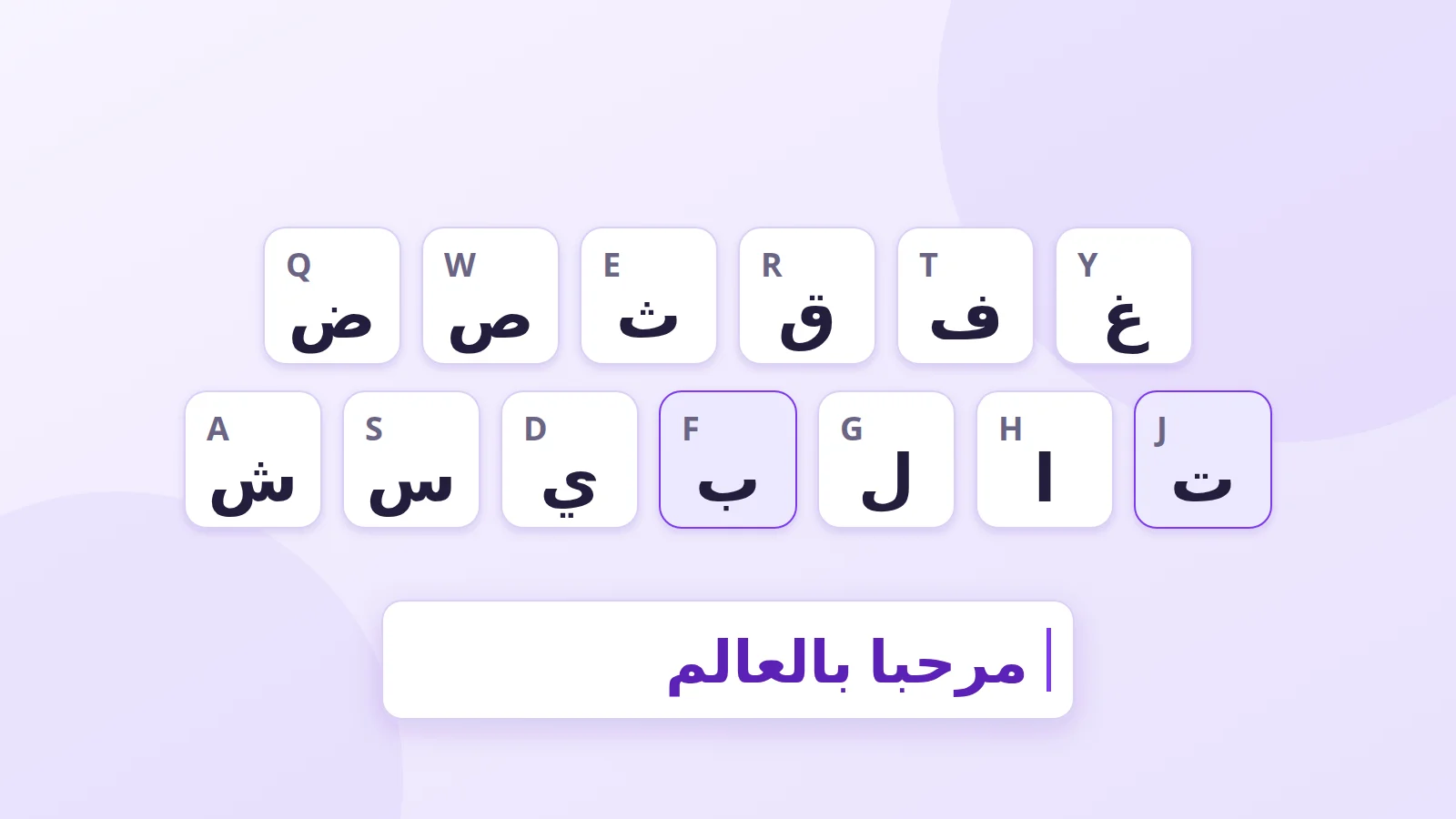
Open our Arabic keyboard. You can:
- click the letters with your mouse, with nothing to learn;
- type on your own keyboard: each key produces the letter in the same position on an Arabic keyboard. F gives ب, J gives ت.
When you're done, copy the text wherever you need it, or search Google or YouTube with it directly.
2. Transliteration: Arabic in Latin letters
If you speak Arabic but don't know where the keys are, this is the most natural method: you spell out the sounds in Latin letters and the tool turns them into Arabic.
Many people already write this way on WhatsApp, in "Arabizi". Numbers stand in for sounds English doesn't have:
| Number | Letter | Why |
|---|---|---|
| 2 | ء (hamza) | the shape looks like the letter |
| 3 | ع (ʿayn) | 3 looks like a mirrored ع |
| 5 | خ (kha) | mostly in North Africa |
| 7 | ح (ḥa) | the shape looks like the letter |
| 9 | ق (qaf) or ص (ṣad) | depends on the country |
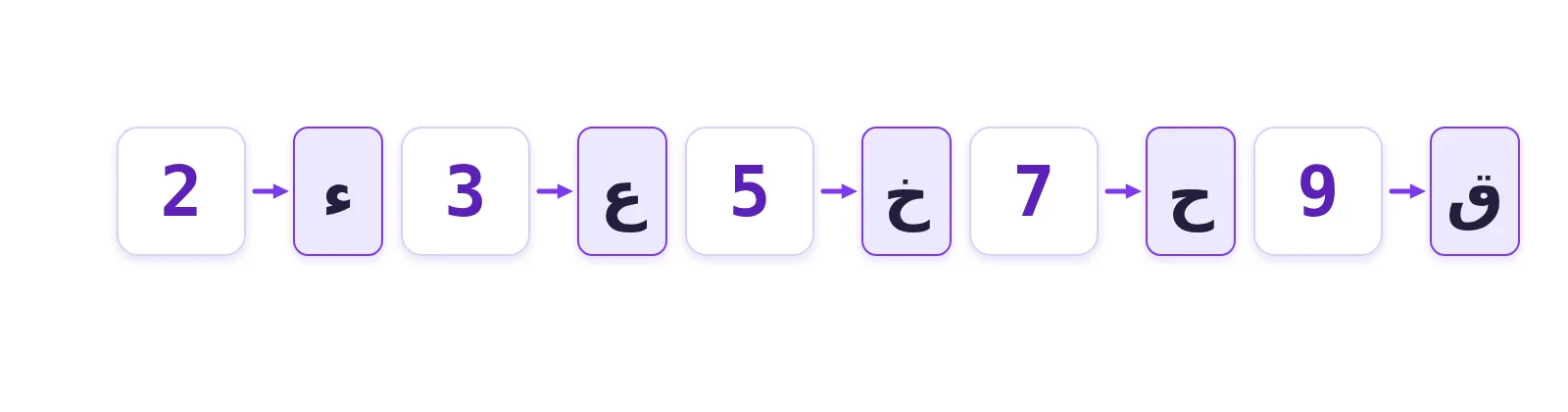
Our Arabic keyboard's transliteration mode converts letter by letter: slm gives سلم, 3rb gives عرب. Tools like Yamli go further and guess the whole word: type salam and it suggests سلام.
The catch: spelling isn't always right, because one sound can match several letters (س or ص, ت or ط). Proofread anything important before you send it.
3. Stickers, to see the letters on your keys
If you install an Arabic layout on your computer (method 4), one thing is missing: your keys only show Latin letters. Stickers fix that. They come as transparent sheets with the Arabic letters printed in colour, which you stick next to the existing letters.
They cost around $5 to $10 and last a year or two before wearing off. For something permanent, some shops will laser-engrave the letters for about $50.
4. Installing an Arabic keyboard on your device
Once you've learned the keys, this is the fastest method, and the only one that works in every app.
Windows 10 and 11
- Open Settings > Time & language > Language & region.
- Click Add a language and search for "Arabic".
- Pick a variant. The key layout is nearly identical across them; "Arabic (Saudi Arabia)" is the standard 101-key Arabic keyboard.
- Switch languages with Windows + Space or Alt + Shift.
macOS
- Open System Settings > Keyboard, then click Edit next to Input Sources.
- Click + and choose "Arabic" (or "Arabic – PC" for the Windows layout). The "Arabic – QWERTY" variant places letters by sound, which helps at first.
- Switch languages with Control + Space, or the 🌐 key on recent Macs.
iPhone and Android
- iPhone: Settings > General > Keyboard > Keyboards > Add New Keyboard > Arabic.
- Android (Gboard): Gboard settings > Languages > Add keyboard > Arabic.
Tap the globe icon to switch between keyboards.
Learning to type without looking
Once the keyboard is installed, you still have to learn where the letters are. A few landmarks:
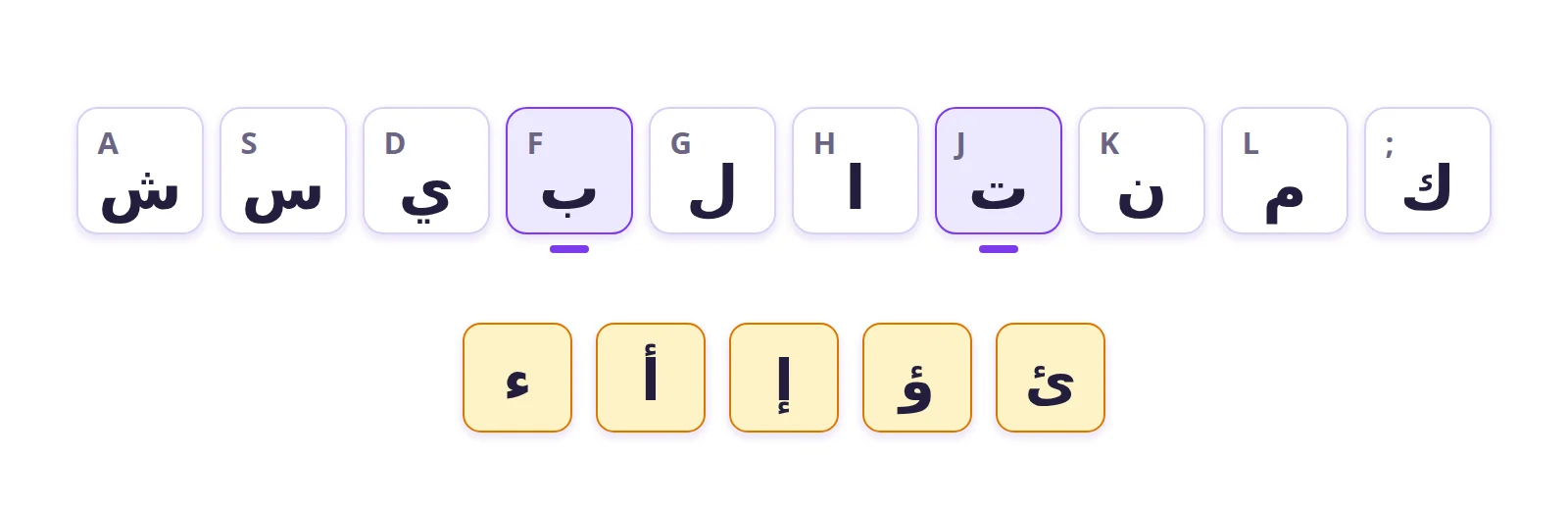
- Your index fingers rest on F and J, as in English. On the Arabic layout, F gives ب and J gives ت.
- Hamza has five forms, each on its own key or with Shift: ء, أ, إ, ؤ, ئ. These take the longest to learn.
- ذ is at the top left, on the ` key, and د is at the top right, after ح and ج.
Spend about fifteen minutes a day on a practice site such as TypingClub, which has an Arabic course. You'll start at a few words a minute; after two or three weeks, 20 to 30 words a minute is a realistic target.
Which method should you use?
- You write Arabic now and then: the online keyboard.
- You speak Arabic but don't know the layout: transliteration.
- You write Arabic every day: install the keyboard, with stickers while you learn the keys.
Further reading
- Our keyboards: Arabic, Amazigh (Tifinagh), Persian, Urdu
- Why use a virtual keyboard?
- Yamli, an Arabic transliteration tool
- Arabic keyboard on Wikipedia