

Mechanical keyboards are thicker, louder and more expensive than your laptop's keyboard. Yet they have plenty of fans among developers, gamers and anyone who types for hours a day. Here's what sets them apart, and how to choose one.
Membrane or mechanical?
Most keyboards that come with computers are membrane keyboards. Under each key, a small rubber dome collapses and closes a contact on a circuit sheet. It's cheap and quiet, but it feels a bit mushy, and you often have to press the key all the way down for it to register.
In a mechanical keyboard, each key has its own switch with a metal spring. The key actuates halfway down, always at the same point, which makes typing more precise and consistent. Switches also last longer: manufacturers often quote 50 million keystrokes or more.
The three families of switches
The colours come from the German brand Cherry, whose MX switches became the model for almost everyone else.
- Linear (red, black): the key travels in one smooth motion, with no bump or click. Popular with gamers for fast, repeated presses.
- Tactile (brown): you feel a small bump when the key actuates, without much noise. The most common compromise for writing and coding.
- Clicky (blue): the bump comes with a sharp click. Satisfying for you, less so for colleagues in an open-plan office.
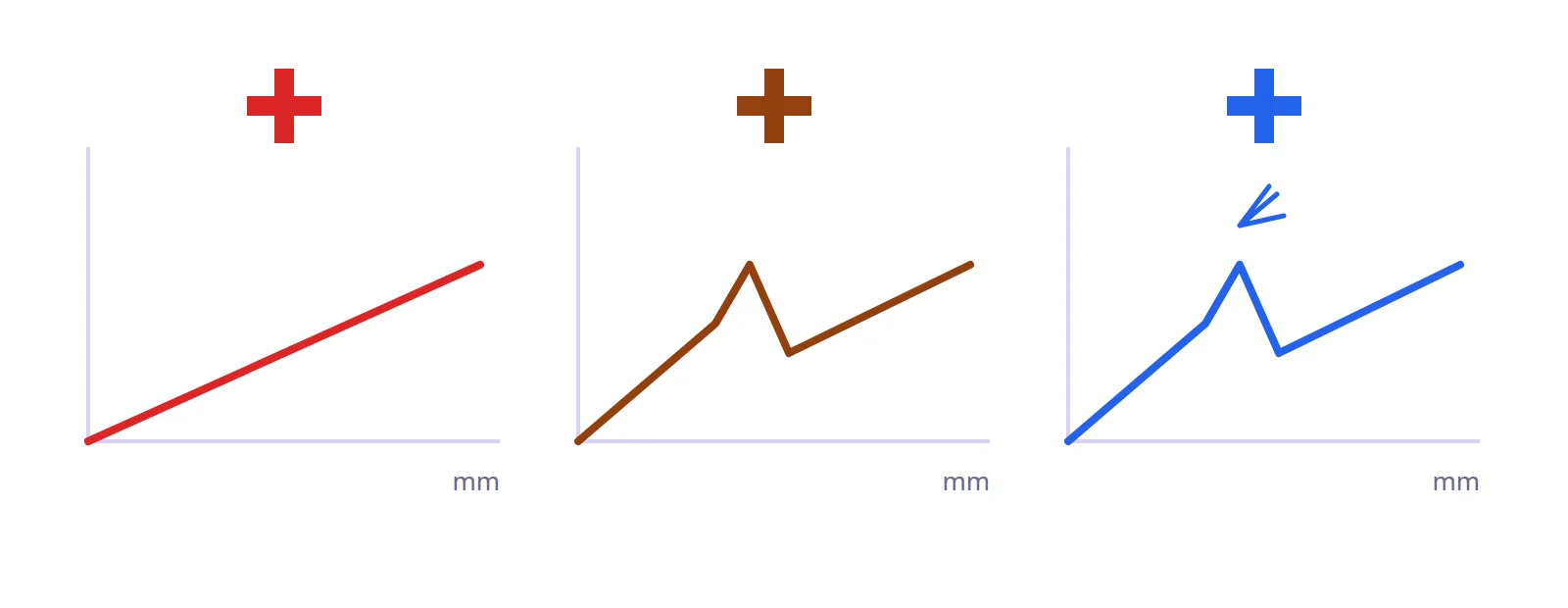
The easiest way to decide is to try before you buy: many shops have demo keyboards, and switch testers cost around $10.
Sizes
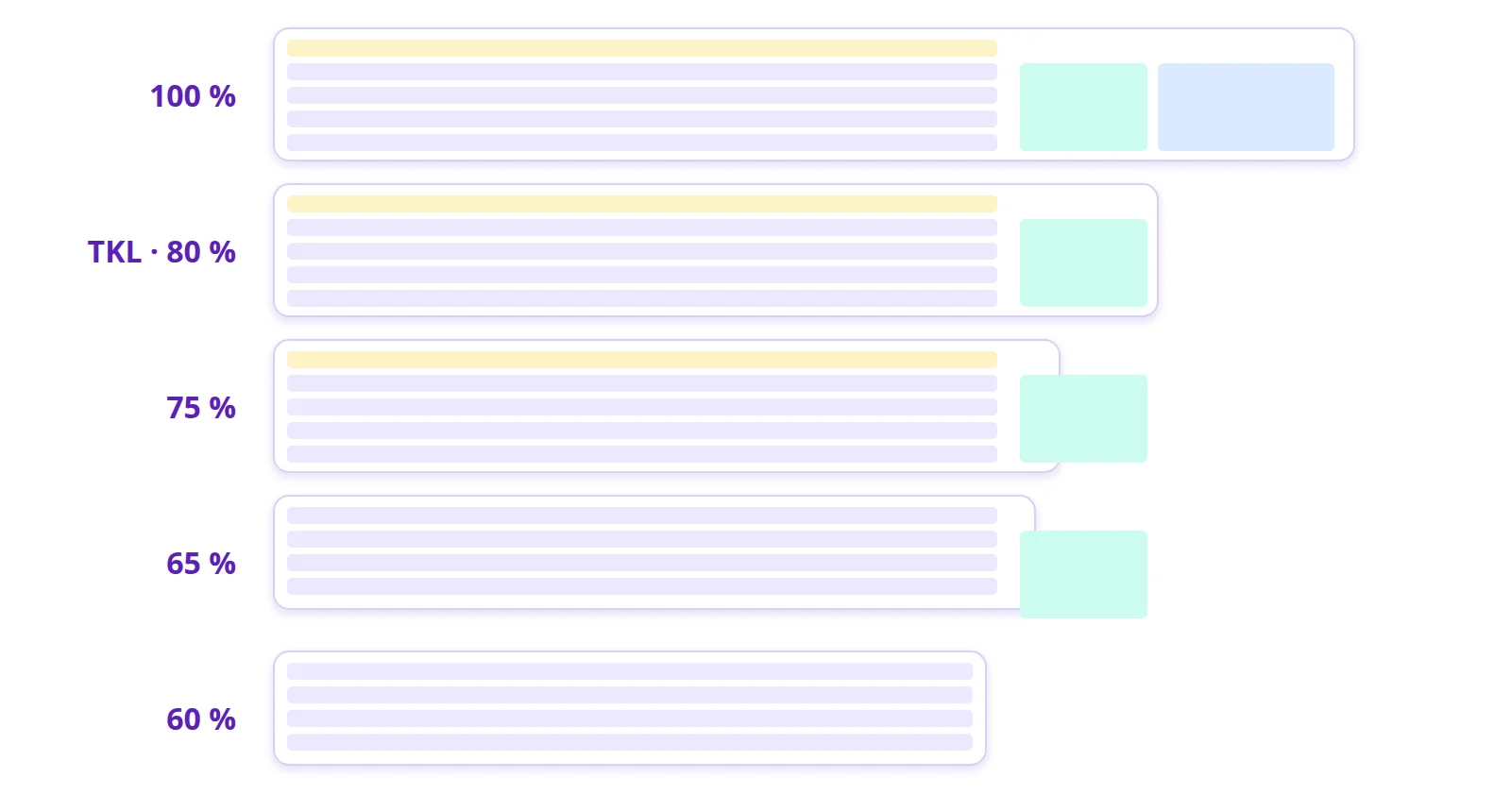
- Full size (100%): the complete keyboard, with a numeric keypad.
- TKL (tenkeyless, about 80%): no numeric keypad. Your mouse sits closer to your right hand, which is easier on the shoulder.
- 75% and 65%: even more compact, while keeping the arrow keys.
- 60%: no arrows or F1-F12 keys; you reach them through combinations with an Fn key. Very compact, but it takes some getting used to.
- Split keyboards: two halves you set shoulder-width apart to keep your wrists straight.
- Ortholinear: keys in a straight grid rather than staggered. More logical for your fingers, but confusing at first.
If you use a non-US layout, check that too: many mechanical keyboards are only sold in US QWERTY. A UK ISO model, or replacement keycaps for your layout, saves you from labels that don't match what you type.
Customising your keyboard
Keycaps
Keycaps pull off and can be replaced. Those made of PBT, a harder plastic, wear better and don't turn shiny over time, unlike the ABS used on cheaper keyboards.
Hot-swappable switches
On "hot-swap" keyboards you can change switches without soldering. Handy for trying different feels, or replacing a faulty key.
Programming
Many mechanical keyboards are programmable, often with the free QMK or VIA software. You can, for example:
- turn the rarely useful Caps Lock into Ctrl or Backspace;
- create layers: hold one key and others become arrow keys or a numeric keypad;
- record macros for repetitive tasks.
For a developer, keeping your hands on the home row saves time and movement.
Is it worth it?
A mechanical keyboard won't make you type faster overnight. Its value lies elsewhere: more consistent, more pleasant typing, and a tool that lasts for years. A good one costs between $80 and $150; hand-built keyboards can run to several hundred, but you don't need one to enjoy the difference.
If you type for several hours a day, it's a reasonable investment. If you mostly write short messages, your laptop keyboard is fine.
Further reading
- QWERTY, AZERTY, Dvorak: which layout to choose
- The history of the keyboard
- Stenotype: typing at the speed of speech
- QMK Firmware
- The r/MechanicalKeyboards community